Best Free WEBP to PNG Converter Tool

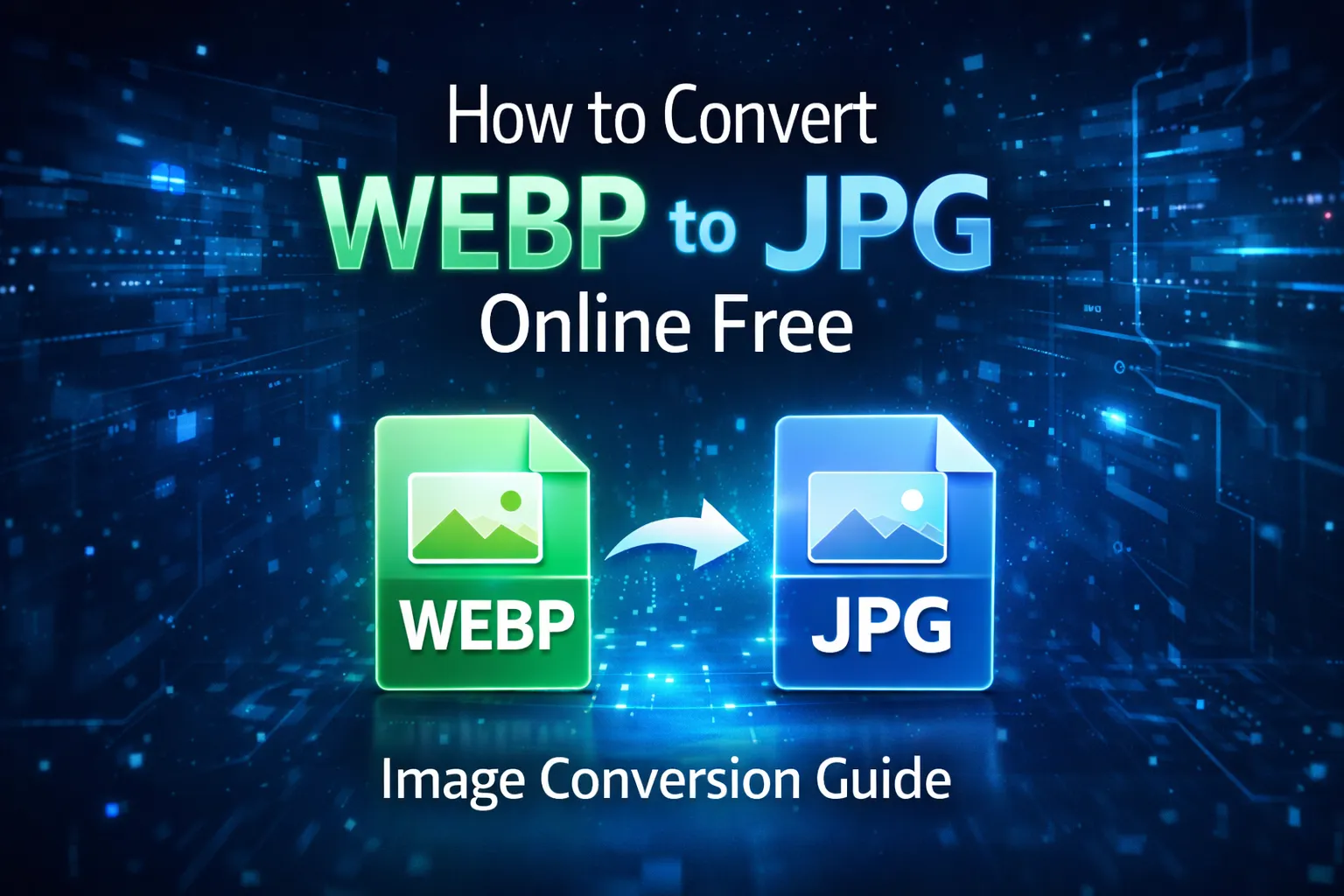
WEBP is an excellent format for compressing images while preserving quality, making it ideal for modern websites and applications. However, many designers, developers and content creators still prefer PNG for its lossless quality and transparency support. This is why having the best free WEBP to PNG converter tool is essential in 2026, especially when working across different platforms and software that may not support WEBP fully.
Whether you are preparing product graphics, UI assets, thumbnails, or images for editing software, converting WEBP to PNG ensures full compatibility and maintains all image details. In this guide, you will find everything you need to know about converting WEBP to PNG easily, quickly and completely free.
1. Why Convert WEBP to PNG?
While WEBP is efficient in file size, PNG is often the preferred choice for professional design and editing tasks. Here are the most common reasons:
- Lossless quality: PNG preserves every pixel exactly as it is, making it ideal for editing and graphics work.
- Transparency support: PNG supports alpha transparency, allowing background removal and overlays.
- Universal compatibility: All major editors, devices and platforms support PNG without restrictions.
- Better editing workflow: Many design tools still rely heavily on PNG for templates, layers and vector exports.
- Social media design: Platforms like Pinterest, YouTube and Twitch accept PNG more consistently for high-quality thumbnails.
This makes PNG the safer, more flexible choice for anything beyond simple website content.
2. Benefits of Using an Online WEBP to PNG Converter
Online conversion tools provide a smooth and fast workflow without requiring software installation. The main benefits include:
- Free and instant image conversions
- Works directly in any browser
- No registration or login required
- Preserves image transparency properly
- Supports high-resolution and large files
- Batch processing for multiple images
- Fast results with minimal waiting time
Leading online platforms like ImagePulser and ImageDocker provide reliable conversion quality and a smooth user experience.
3. How to Use the Best Free WEBP to PNG Converter Tool
The process is extremely simple and takes only a few seconds. Here’s how to do it:
- Open a reputable converter such as ImagePulser PNG Converter or ImageDocker PNG Converter.
- Click the upload button or drag and drop your WEBP file into the tool.
- The tool automatically processes the image and prepares the PNG version.
- Download your converted PNG file instantly.
- For multiple conversions, repeat the upload or use ImageDocker Batch PNG Converter batch processing features if available.
This straightforward method ensures accurate results without compromising image quality.
4. Ensuring High-Quality Output
When converting WEBP to PNG, quality matters especially for logos, UI elements and graphics. Here are a few tips to maintain clarity and color accuracy:
- Always choose tools that explicitly support lossless PNG output.
- Avoid unnecessary image resizing unless required for your project.
- If your image contains transparency, make sure the converter supports full alpha channel preservation.
- Use original high-resolution WEBP files for best results.
Both ImageDocker and ImagePulser maintain transparency and image sharpness exceptionally well.
5. Features to Look For in a WEBP to PNG Converter
The best free WEBP to PNG converter tool should offer the following features:
- Instant file processing with no delays
- Support for high-resolution images
- Accurate color preservation
- Transparent background retention
- Secure and privacy-friendly file handling
- Mobile and desktop compatibility
- Simple interface with no ads or clutter
Any tool that checks these boxes offers a reliable and professional conversion experience.
6. Common Issues When Converting WEBP to PNG
- Loss of transparency: Happens when using low-quality converters always choose a trusted tool.
- Color mismatch: Some converters process colors incorrectly; ImagePulser avoids this issue.
- Slow processing: Large files may lag on inefficient platforms.
- Compression artifacts: PNG should be lossless avoid tools that recompress output.
Choosing a reputable converter eliminates these problems entirely.
7. When to Use WEBP vs PNG
Choosing between WEBP and PNG depends on your needs:
- Use WEBP for website images, thumbnails and optimized graphics.
- Use PNG for transparent images, editing workflows, logos, and UI elements.
- Use PNG when working with design tools such as Figma, Photoshop or Illustrator.
- Use WEBP when optimizing for performance and page speed.
In short, PNG is best for precision; WEBP is best for speed and compression.
Final Recommendation
If you are searching for the best free WEBP to PNG converter tool, platforms like ImagePulser PNG Converter and ImageDocker PNG Converter provide a fast, secure and high-quality solution for converting WEBP files to PNG seamlessly. Whether you're a designer, developer, marketer or content creator, converting to PNG gives you maximum compatibility, full transparency support and uncompromised visual clarity.
Comments (0)
No comments yet. Be the first to share your thoughts!
Leave a Comment