Remove Image Background Free – Fast & Easy

A cluttered background ruins a good photo. You lose focus on the subject. Removing the background fixes that in seconds. Today, you don't need Photoshop or any design skills. The right tool does all the heavy lifting for you. So, what makes a great free background remover worth using?
Why You Need to Remove Image Backgrounds for Free
Clean images are powerful. They grab attention faster. A plain subject on a transparent background works on any design. It fits product pages, social posts, and presentations. You can place it anywhere without clashing with colors.
Hiring a designer costs money and time. Online tools let you get the same result in under a minute. AI background removal has made this process fast, free, and accurate. Even complex edges like hair come out clean.
How AI Background Removal Works
The process is simple. You upload a photo and the AI scans it instantly. It detects the main subject and separates it from everything else. The background is then erased. What remains is a crisp transparent PNG ready to use.
Modern AI handles tricky areas well. It detects fine hair strands, curved edges, and soft shadows. You don't need to trace anything by hand. The tool does it all automatically.
The best online photo editors now offer this in just one click. No installs. No signups. Just upload and download.
How to Remove Image Background Free: Step by Step
Getting a clean cutout is easier than you think. Most tools follow three quick steps. Here is exactly how the process works from start to finish.
Step 1: Upload Your Image
Go to the background eraser online tool. Click upload or drag and drop your image. JPG, PNG, and WebP files all work. Make sure your image is clear and well-lit for the best results.
Step 2: Let AI Detect and Erase the Background
Once uploaded, the AI scans your photo. It identifies your subject and separates it from the background. The photo cutout tool erases everything behind it. This takes just a few seconds. No manual selection is needed.
Step 3: Download Your Transparent PNG
After the background is removed, you get a clean result. Download it as a transparent PNG download. You can also add a white, black, or custom-colored background. Then save and use it anywhere you need.
Best Image Types for Clean Background Removal
Not every image gives the same result. The cleaner your photo, the better the cutout. Here are the types that work best with a remove background from image tool.
Product photos with a plain backdrop give sharp edges. Portraits and headshots work great too. Animals, logos, and object shots also produce clean results. Use high-resolution images whenever possible. Low-quality inputs give rough edges.
Avoid heavily blurred or very dark backgrounds. The AI needs contrast to detect your subject correctly. A clear subject on a different-toned background gives the best subject isolation result.
Top Uses of Free Background Removal
Once you remove the image background for free, the possibilities open up. Your cutout image is ready for many uses.
E-commerce sellers use it for clean product listings. Social media creators use cutouts for posts and stories. Designers add subjects to custom scenes. Job seekers use it for professional headshots. Teachers use it for presentations and digital worksheets.
You can also remove white background from logos and place them on any color. This keeps your brand consistent across all platforms.
More Smart Image Tools to Try
Background removal is just one step. After you get a clean cutout, you may need to resize or compress it. Here are some tools that work great alongside a no-signup background remover.
Use the Image Resizer to set exact pixel dimensions for your cutout. Great for social media specs and product listings.
The Image Compressor reduces file size without hurting quality. Perfect for web uploads and faster-loading pages.
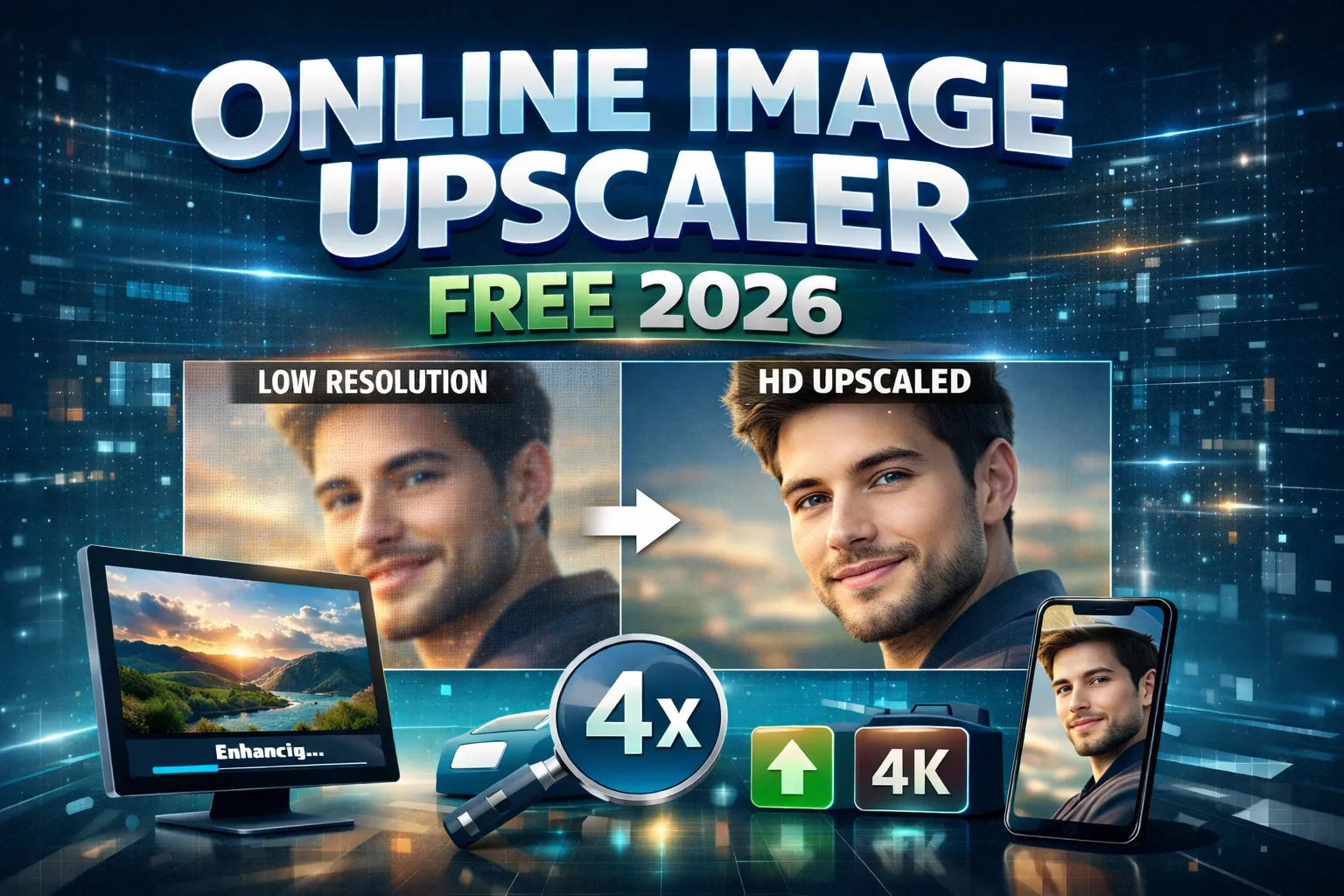
Need to boost image clarity? The Upscale Image tool uses AI to sharpen your cutout. It adds fine detail back without creating blur.
Want to crop the result to a perfect square or custom size? Use the Crop Image tool. It works directly in your browser, no software needed.
Tips to Get the Best Results Every Time
A few small habits lead to much cleaner cutouts. Follow these tips every time you use a free background remover tool.
Use well-lit photos. The darker or blurrier the image, the more difficult the AI will find it to identify the edges. Maintain a focal point in the frame. Do not use backgrounds that match your subject.
When exporting, always remember to do it as a PNG to preserve the transparent background. JPEG does not have transparency. If you need to edit further, use the image tools provided on this same platform.
Frequently Asked Questions
Is it really free to remove an image background online?
Yes, several tools will remove the image background without charging you anything. You just upload your image, AI removes the background, and you download the cleaned image.
Is sign-up required to remove an image background?
Most free tools don't require sign-up. Upload your image, AI removes the background, and you download it as a clear PNG file in no time at all.
Which file type will I receive when I remove the background?
A PNG image with a transparent background is provided. PNG has transparency, which is ideal for putting your subject over any new background or design.
If I remove a background, can I replace it?
Yes. Once the background has been removed, the white, black, or custom color can be added. The subject can also be put on a new photograph or pattern to provide creative effects.
Comments (0)
No comments yet. Be the first to share your thoughts!
Leave a Comment