Resize Photo for YouTube Cover Free Tool

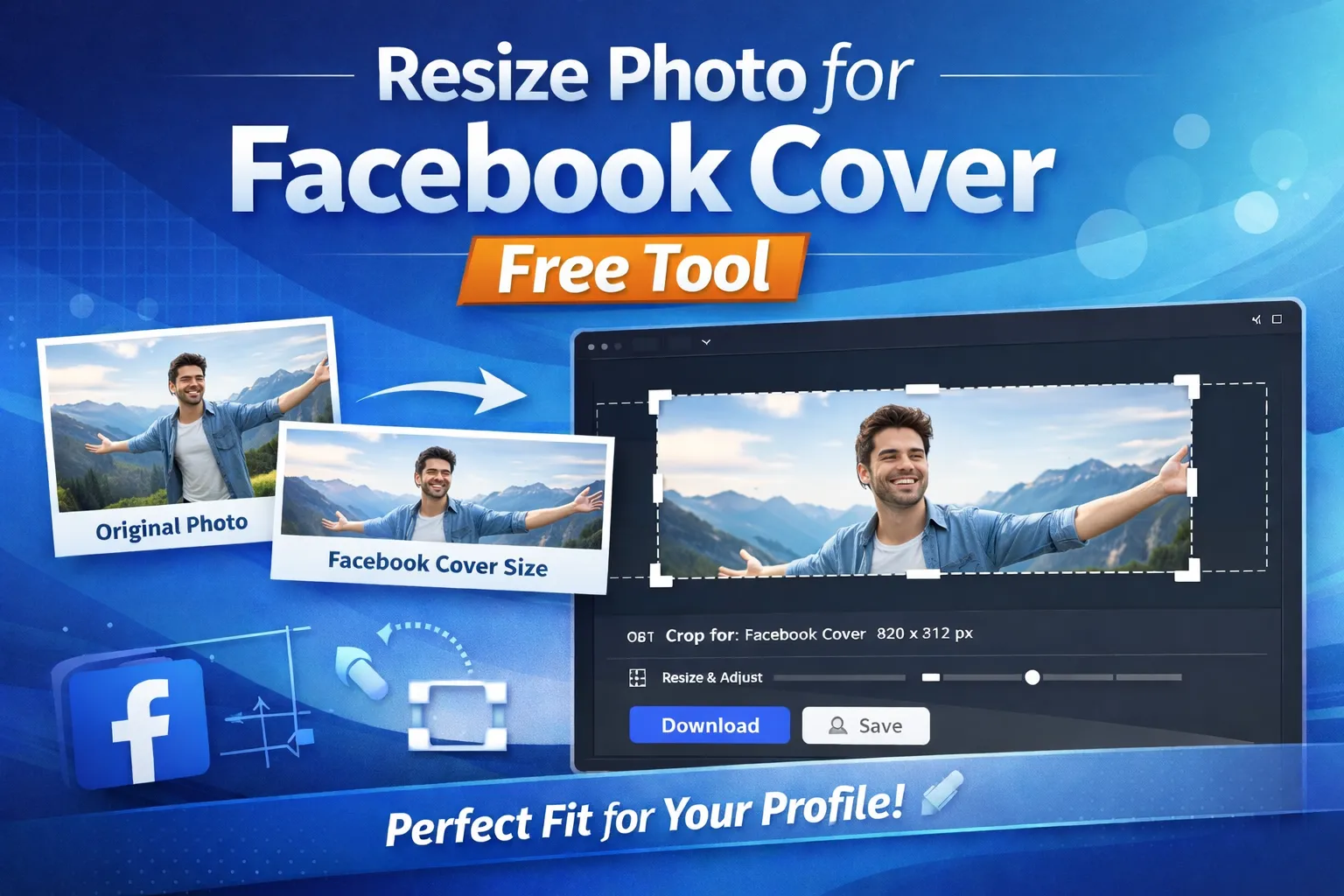
YouTube channel art is a crucial visual element that defines the first impression of your channel. Properly resized, professional-quality images improve branding, attract subscribers, and enhance viewer engagement. Learning how to resize photo for Youtube cover free tool ensures your channel art is displayed correctly across all devices, from desktops to mobile phones and smart TVs.
YouTube cover photos have specific size requirements. The recommended dimension for channel art is 2560 x 1440px tall, with the “safe area” for text and logos limited to 1546 x 423px. Correctly resizing your photo ensures that critical content fits within the safe area, avoiding unwanted cropping or hidden elements on different screens.
Importance of Resizing
Uploading a photo without proper resizing often leads to distorted images or misaligned content. YouTube automatically scales images depending on the viewer’s device, which can result in parts of the banner being cut off. By using a free online resize tool, you maintain full control over dimensions, aspect ratio, and placement of key elements. Proper resizing guarantees that your channel art looks professional on all display formats.
Resolution is also a key factor. A high-quality source image prevents pixelation and blurring, while excessively large files may slow loading times or be rejected by the platform. A free resize tool optimizes the balance between clarity and file size, resulting in fast-loading, crisp channel art.
Selecting the Right Free Tool
Many online tools allow you to resize YouTube cover photos for free. The best tools like ImageDocker Resize Image let you set precise dimensions, lock the aspect ratio, and provide live previews of your final banner. These tools also allow cropping, repositioning, and minor enhancements to ensure critical elements remain within the safe area.
Interactive cropping is particularly important for banners with text, logos, or call-to-action visuals. Free tools that provide safe zone overlays help you align content properly, preventing important elements from being cut off during automatic device scaling.
Maintaining Aspect Ratio
Aspect ratio is critical when resizing YouTube channel art. The standard ratio is 16:9, and altering it can stretch or compress the image unnaturally. Using a free online resize tool, always lock the aspect ratio to maintain the natural proportions of your photo. This ensures a visually consistent banner across desktops, mobile devices, and TVs.
Ignoring aspect ratio can make logos look skewed or text difficult to read. Properly maintaining it preserves both professional appearance and viewer engagement.
Safe Area Considerations
The central “safe area” is the portion of the banner visible on all devices. When learning how to resize photo for Youtube cover free tool, pay close attention to this zone. Place important elements such as channel name, branding logos, or key visuals within this space to prevent them from being cropped out on smaller screens.
Free tools often provide guides or overlays to mark the safe area, simplifying alignment and composition. Using these guides ensures that your banner maintains a professional appearance regardless of the viewing device.
Color, Clarity, and Visual Quality
High-quality YouTube banners require clear visuals, sharp text, and balanced color. Even after resizing, subtle adjustments in brightness, contrast, or saturation may be necessary. Free online tools often provide basic editing options to preserve clarity, enhance contrast, and maintain visual appeal. These adjustments ensure that the resized banner remains attractive and readable across different devices.
Preparing for Multiple Devices
YouTube channel art appears differently depending on the device. Desktop screens display a wider portion, while mobile devices show a narrower vertical section. Smart TVs can crop and scale images differently as well. Proper resizing and previewing in the free tool ensures that all essential content remains visible, avoiding surprises after uploading the banner.
Some tools allow you to preview the banner on multiple devices before finalizing the export. This is extremely helpful to verify that the text, logos, and central imagery remain visible and correctly aligned.
Optimizing File Size
File size is important for upload speed and YouTube’s processing system. While clarity is critical, overly large files may take longer to upload and process. Free resize tools often optimize the image to reduce file size without sacrificing visual quality. Proper optimization ensures smooth uploads and consistent display across devices.
Common Mistakes to Avoid
Common errors include uploading images without resizing, misaligned text, ignoring the safe area, distorted aspect ratio, or low-resolution images. Using a free online tool helps avoid these mistakes by providing precise resizing, cropping, and visual guides. This ensures professional-quality channel art that is consistent across devices.
Step-by-Step Workflow
1. Open a free online YouTube cover resize tool.
2. Upload your original photo.
3. Set dimensions to 2560x1440 pixels and lock aspect ratio to 16:9.
4. Align important content within the 1546x423 pixel safe area.
5. Crop and reposition elements as needed.
6. Adjust brightness, contrast, or colors if necessary.
7. Preview across desktop, mobile, and TV views.
8. Export optimized image in JPEG or PNG format.
9. Upload as your YouTube channel banner.
Final Thoughts
Learning how to resize photo for Youtube cover free tool allows you to create professional, visually appealing channel art. By maintaining correct dimensions, aspect ratio, safe area placement, and visual clarity, your YouTube banner will look perfect on all devices. Free online tools simplify this process, helping creators maintain a consistent, polished, and professional channel appearance with minimal effort.
Comments (0)
No comments yet. Be the first to share your thoughts!
Leave a Comment